> For the complete documentation index, see [llms.txt](https://help.steeple.com/llms.txt). Markdown versions of documentation pages are available by appending `.md` to page URLs; this page is available as [Markdown](https://help.steeple.com/en/modules/module-reservation-de-salles.md).
# Room booking module
#### How do I add and edit the Room Booking module?
**Step 1** : Go to the section **Modules** then scroll down to find the module. Click on the button **Learn more**, then on **Install**.
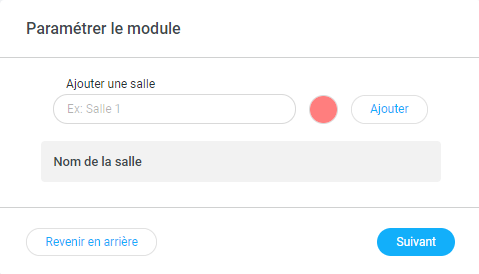
 **Step 2** : Configure the module by adding the names of your rooms bookable by your employees. We recommend specifying the capacity in the name of the bookable room. Example: Florence Arthaud Room \[15 ppl.]. You can also assign a color to better distinguish the rooms when booking.\
Click on **Next**.
**Step 2** : Configure the module by adding the names of your rooms bookable by your employees. We recommend specifying the capacity in the name of the bookable room. Example: Florence Arthaud Room \[15 ppl.]. You can also assign a color to better distinguish the rooms when booking.\
Click on **Next**.
 **Step 3** : If you have a touchscreen connected to your community, you can add this module to the display on the TV. By default, the module is available on mobile and browser versions.
#### How do I use and view the Booking module?
The module **Room booking** is visible from the display board, the web browser, and the mobile app, and remains present in the module area. Here's what it looks like:
**Step 3** : If you have a touchscreen connected to your community, you can add this module to the display on the TV. By default, the module is available on mobile and browser versions.
#### How do I use and view the Booking module?
The module **Room booking** is visible from the display board, the web browser, and the mobile app, and remains present in the module area. Here's what it looks like:
 You can find two types of information there:\
🔷 The **meetings of the day and the booked room** ;\
🔷 The**action buttons**.
The button **See More** lets you get an overview of bookings by day for each bookable room. A new interface will appear for optimal visibility.
The button **Book** allowing you to book a room live.
📢 Only the creators of a booking can edit or delete it!
💡 **For more comfort**, click on **See More** **then Book** the room directly in the interface.
\
👉 Button **See More:**\
To change the viewing date, you can either use the left and right arrows or click on the date to select it in the calendar.
You can find two types of information there:\
🔷 The **meetings of the day and the booked room** ;\
🔷 The**action buttons**.
The button **See More** lets you get an overview of bookings by day for each bookable room. A new interface will appear for optimal visibility.
The button **Book** allowing you to book a room live.
📢 Only the creators of a booking can edit or delete it!
💡 **For more comfort**, click on **See More** **then Book** the room directly in the interface.
\
👉 Button **See More:**\
To change the viewing date, you can either use the left and right arrows or click on the date to select it in the calendar.
 👉 Button **Book:**\
The fields must be filled in **Your booking title**, **Your booking date**, **Room** and **time slots**. Finish by clicking on the button **Book**.\
👉 Button **Book:**\
The fields must be filled in **Your booking title**, **Your booking date**, **Room** and **time slots**. Finish by clicking on the button **Book**.\
#### How do I edit and delete the module?
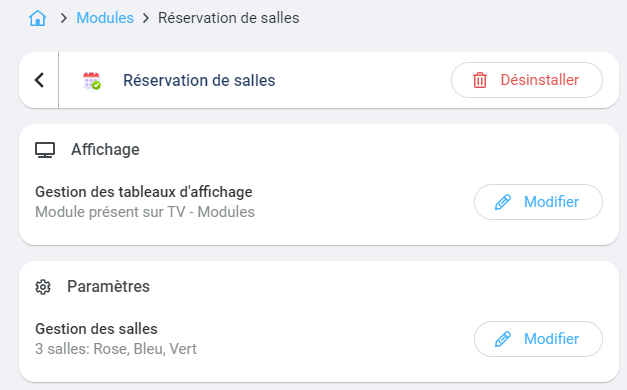
To **modify** the settings, go back to the **Settings** of the module. Click on the block **Room management** to edit their name, color, or delete them.
To **uninstall** the module, go to the**Administration**, tab **Modules**, find the module in the **Installed** then click on **Settings.** A new window opens and at the top right will be the red button **Uninstall**.