> For the complete documentation index, see [llms.txt](https://help.steeple.com/llms.txt). Markdown versions of documentation pages are available by appending `.md` to page URLs; this page is available as [Markdown](https://help.steeple.com/en/modules/module-boite-a-idees.md).
# Suggestion Box module
📢 Only Administrators can define the selectable themes in the idea box.
#### How do I install the Idea Box module?
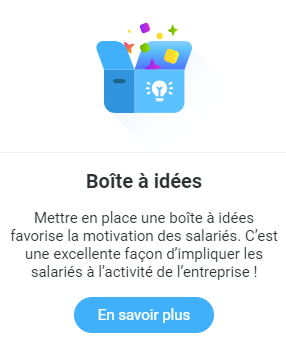
**Step 1** : Go to the **Modules** section, then scroll down to find the module. Click on the **Learn more**, then on **Install**.
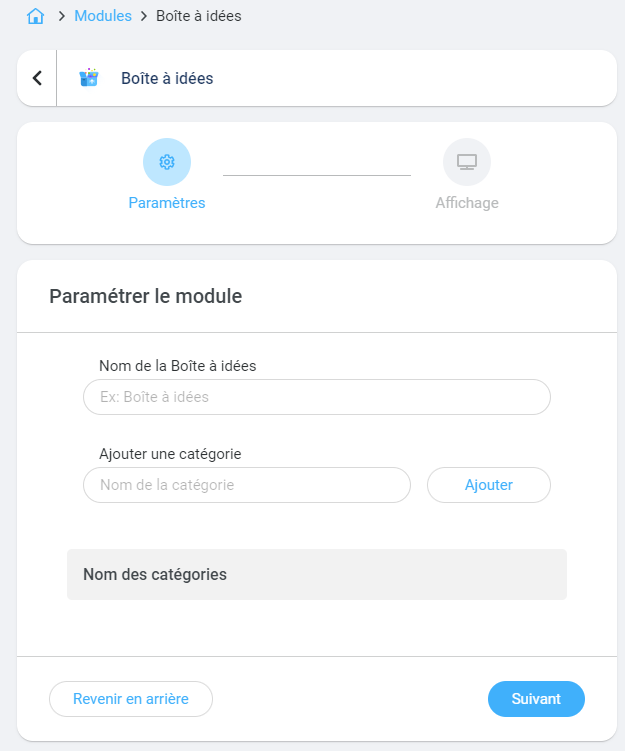
 **Step 2** : Configure the module by defining a name for the idea box and adding categories selectable by your employees. Click on **Next**.
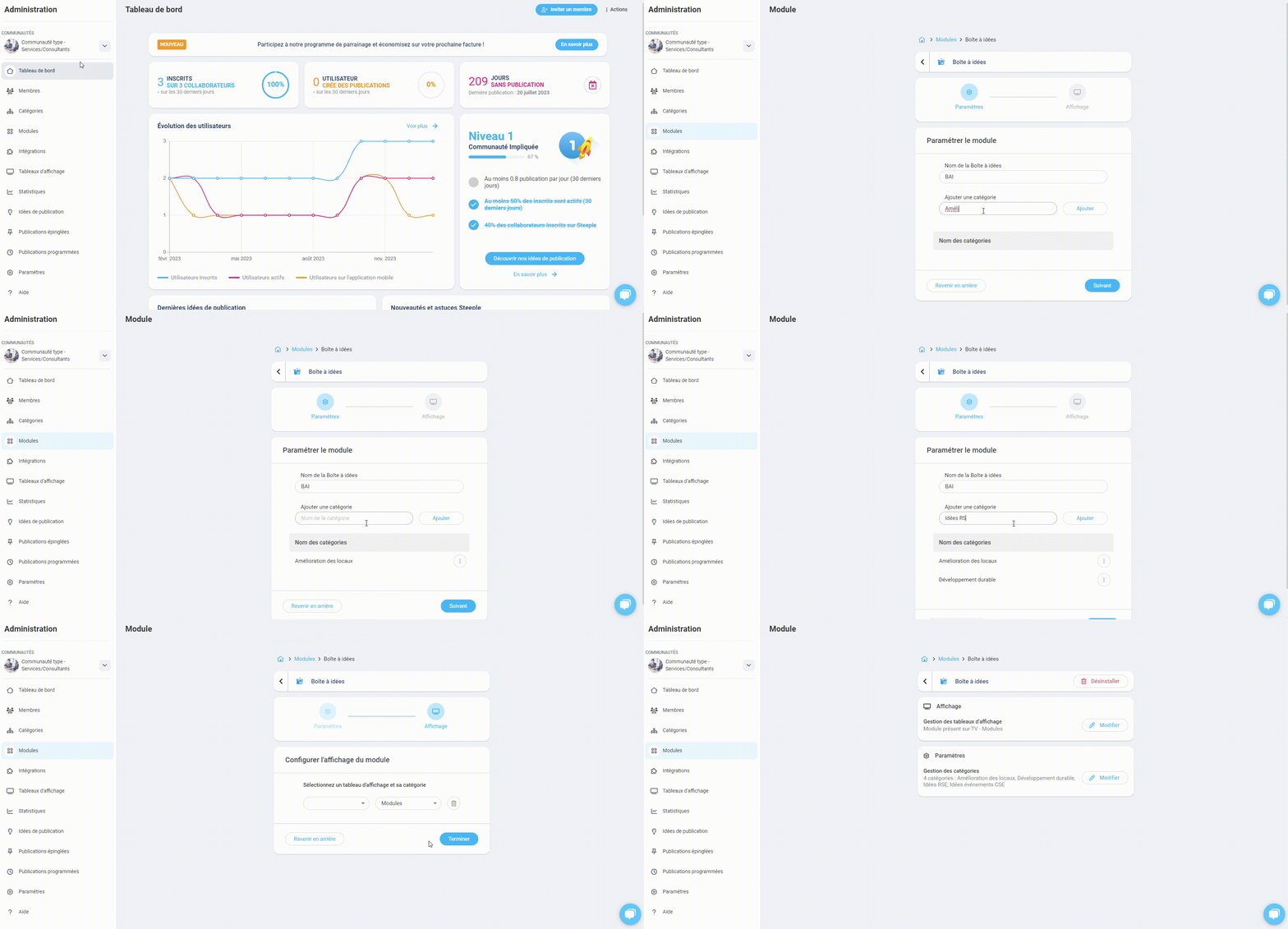
 **Step 3** : If you have a touchscreen connected to your community, you can add this module to the display on the TV. By default, the module is available on mobile and browser versions.
#### How do I use and edit the Idea Box module?
👉 The module is available on all devices: the web browser, the mobile app, or the touchscreen.
\
**To configure the categories (administrators only):**
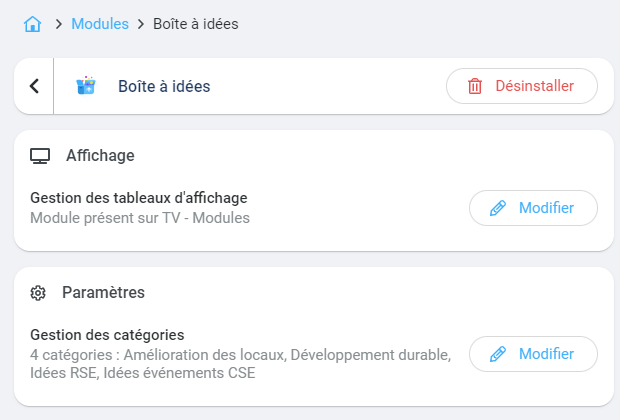
To do this, go to the**Administration**, tab **Modules**, tab **Installed**, then click the **Settings** button for the Idea Box module. You will access the settings and can click the edit button in the **Category management.** Create as many categories as needed.\
You can change the category names however you like.
⭐ **In video** :
**Step 3** : If you have a touchscreen connected to your community, you can add this module to the display on the TV. By default, the module is available on mobile and browser versions.
#### How do I use and edit the Idea Box module?
👉 The module is available on all devices: the web browser, the mobile app, or the touchscreen.
\
**To configure the categories (administrators only):**
To do this, go to the**Administration**, tab **Modules**, tab **Installed**, then click the **Settings** button for the Idea Box module. You will access the settings and can click the edit button in the **Category management.** Create as many categories as needed.\
You can change the category names however you like.
⭐ **In video** :
 \
**To share ideas, view and react to others:**\
**Step 1** : Go to the module area. Two tabs are present: the **latest ideas** submitted (from newest to oldest) and the **best ideas** (with the most votes/likes recorded).
\
**To share ideas, view and react to others:**\
**Step 1** : Go to the module area. Two tabs are present: the **latest ideas** submitted (from newest to oldest) and the **best ideas** (with the most votes/likes recorded).
 **Step 2** : Select the appropriate category to add your idea. At this stage, you also have the possibility to view all ideas published in the relevant category via a filtered view.
 **Step 3** : click the **Suggest an idea** to start writing.\
The window below will open. You will need to give a **title** that is evocative, write the **idea details** by sharing as much content as possible and **check** that **the category** preselected is indeed the one you filtered previously. Finish by clicking the **Suggest an idea**.
**Step 3** : click the **Suggest an idea** to start writing.\
The window below will open. You will need to give a **title** that is evocative, write the **idea details** by sharing as much content as possible and **check** that **the category** preselected is indeed the one you filtered previously. Finish by clicking the **Suggest an idea**.
Your colleagues will be able to react to your idea by leaving a vote and a comment. Just click on the idea and a new window will open.
**💡** Launch limited-time consultations with a specific theme in order to kill two birds with one stone: **collect ideas** and **reward employees** for the most relevant ideas via the voting system!
How do I uninstall the module?\
To do this, go to the**Administration**, tab **Modules**, find the module in the **Installed** then click on **Settings.** A new window opens and at the top right will be the red button **Uninstall**.
 **📢** If you **uninstall** **the module** idea box, the**history of results (ideas, votes and comments)** will be **definitively lost.**