> For the complete documentation index, see [llms.txt](https://help.steeple.com/llms.txt). Markdown versions of documentation pages are available by appending `.md` to page URLs; this page is available as [Markdown](https://help.steeple.com/en/administration/synchroniser-annuaire-lucca.md).
# How do I synchronize my collaborator directory with Lucca?
### Introduction
The Lucca integration synchronizes your Steeple directory from your Lucca HRIS: account creations, profile updates, and departures follow your HR source of truth. When you add an employee in Lucca, their account is created automatically in Steeple.
Synchronization is **automatic every night**. You can also trigger it yourself at any time without waiting for the next run.
Setup takes place in two steps: create a Steeple application in Lucca to obtain access keys, then configure the connector in Steeple.
### Prerequisites
* Have the necessary rights in Lucca to create an OAuth application (see step 1).
* Stop provisioning your organization via SCIM: an HRIS connector and SCIM provisioning cannot coexist, and as long as SCIM is active the connector cannot be enabled.
### Step 1 — Create a Steeple application in Lucca
For Steeple to be able to synchronize with Lucca, you must first create access keys on the Lucca side.
In Lucca, go to **Administration** > **Settings**, then, in the **Security**section, select **OAuth Applications**.
If this entry does not appear in your menu, you do not have the required permissions: contact your Lucca administrator.
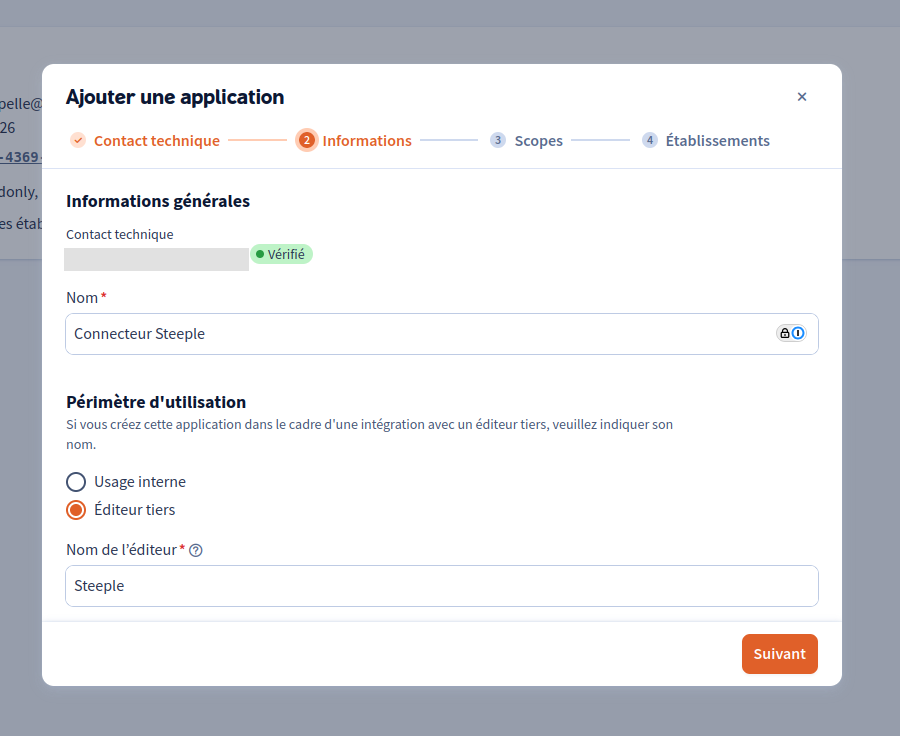
Click **Add an application**. A window opens, organized into four steps, after which Lucca displays the access keys.
#### 1. Technical contact
Enter the email address that will be used as the technical contact with Lucca.
#### 2. Information
* **Last name** : the application name, for example “Steeple Connector.”
* **Usage scope** : select **Third-party publisher**.
* **Publisher name** : enter **Steeple**.
#### 3. Scopes
Scopes define the resources Steeple can access. Select the following five:
* `employees.readonly` — essential employee information (last name, first name, email, etc.)
* `employments.readonly` — contract start and end dates
* `job-positions.readonly` — position held and manager
* `departments.readonly` — employee assigned to a department
* `business-establishments.readonly` — employee assigned to an establishment
These scopes are **read-only** and do not give access to information classified as critical by Lucca.
All five are required: Lucca rejects the access request if one of them is not declared on the application, and any missing information (contract dates, for example) prevents departures from being detected.
The list of available scopes is documented by Lucca:
#### 4. Establishments
Select the establishments that the Steeple connector should cover.
#### After validation — Retrieve the access keys
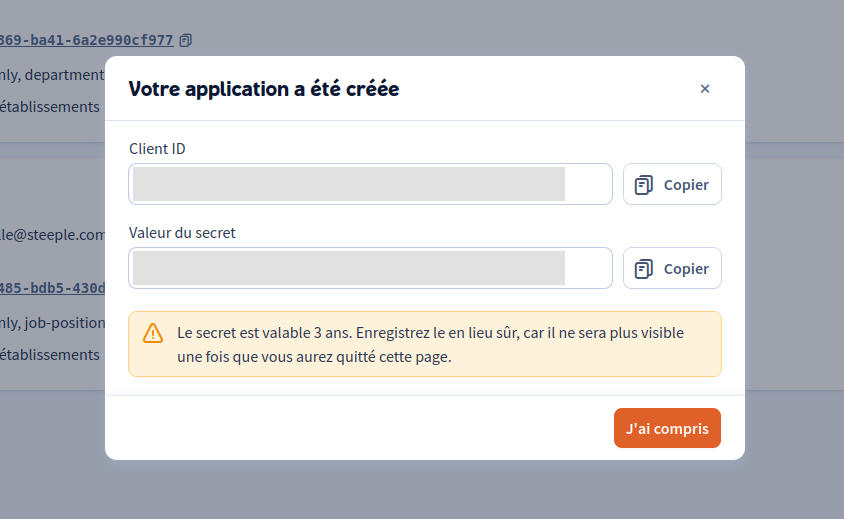
Once these four steps have been validated, Lucca confirms the application has been created and displays the two pieces of information needed to configure Steeple: the **Client ID** and the **Secret Value**. Use the **Copy** buttons to retrieve them.
Keep them in a safe place before leaving this page: **the secret value is never shown again**. The secret is valid for **3 years** — after that, you must generate a new one and enter it again in Steeple.
### Step 2 — Configure the connector in Steeple
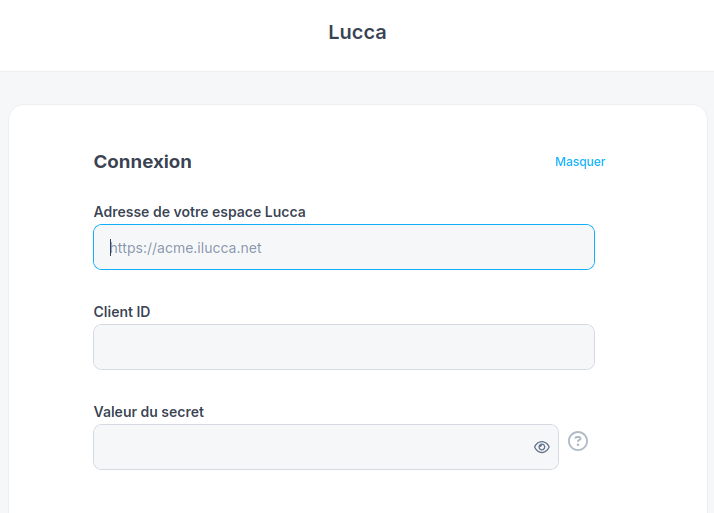
Go to the**Administration**, section **Integrations** (`/administration/integrations`), then select **Lucca**. The page is organized into collapsible sections: click **Display** to open the one you are working on.
#### Login
* **Address of your Lucca space** : the domain name shown in your browser when you are in Lucca, for example `https://034-mon-entreprise.ilucca.net`. The address must start with `https` and point to a Lucca domain (`ilucca.net`, `ilucca.ch`, their variants `ilucca-test` and `ilucca-demo`, or `luccasoftware.com`).
* **Client ID** : the Client ID generated in step 1.
* **Secret Value** : the secret value generated in step 1.
The credentials are never shown again. If you edit this later, leave these fields empty to keep the ones already saved.
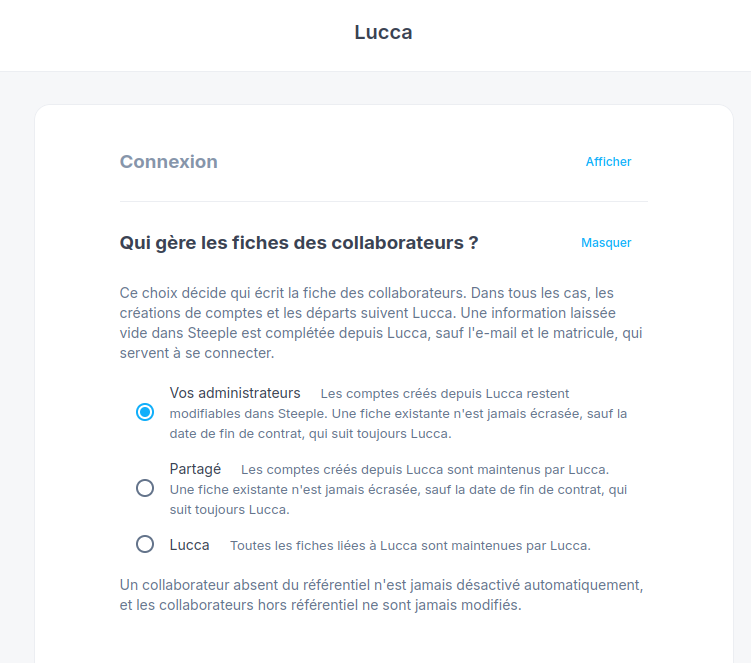
#### Who manages employee profiles?
This choice determines **who writes employee profiles**. It does not change the synchronization frequency: whichever option you choose, it remains automatic. Account creations and departures follow Lucca.
* **Your administrators** — accounts created from Lucca remain editable in Steeple. An existing profile is never overwritten, except for the contract end date, which always follows Lucca.
* **Shared** — accounts created from Lucca are maintained by Lucca. An existing profile is never overwritten, except for the contract end date.
* **Lucca** — all profiles linked to Lucca are maintained by Lucca.
Any information left empty in Steeple is filled in from Lucca, except for the email and employee number, which are used to log in.
An employee absent from the source directory is never automatically deactivated, and employees outside the source directory are never modified.
Assign profiles to **Lucca** requires confirmation: starting with the next synchronization, Lucca writes the profile for all linked employees, changes entered in Steeple are overwritten, and switching back to another choice does not restore them.
#### Advanced options
* **Automatically create dynamic communities** — departments and locations from the source directory that do not yet have a community will be created during synchronization.
* **Send activation emails** — employees created by the connector receive an email to activate their account. Only accounts created once this option is enabled will receive one.
* **Do not sync the location** — the Lucca establishment is no longer used as a location on profiles.
* **Do not sync the birthday** — the birthday entered in Lucca is no longer used on profiles.
These two options leave the field as is: nothing is overwritten, and you remain free to fill it in Steeple.
#### Installation
The section **Installation** brings together the connector’s three actions.
1. **Save and check the connection** — saves the configuration, then checks that Lucca responds with the entered credentials and reads your directory. No one is created. The connector becomes active once the check succeeds.
2. **Test the synchronization** — runs a full synchronization without writing anything to the profiles: the report shows which employees would be created, updated, completed, or marked as leaving. Employees already present in Steeple are matched to their Lucca profile and linked to the connector, without changing their profile. On a large directory, the operation may take a few minutes.
3. **Sync now** — actually applies the synchronization: profiles, communities, and departures are written to your employees. The first run creates your employees in Steeple; the test above tells you exactly which ones. Lucca is then synchronized automatically every night.
Validation always comes first: as long as the connector is not active, the other two actions remain unavailable. **The test is required only before the first synchronization.** It is what creates your entire organization, and the test is what tells you in advance what it will do. Once that first run has completed, the test remains available but is no longer required: you can change the configuration and synchronize right after.
Each action gives access to a **View report**link, which details how it ran. The link appears only once the run is complete: while it is running, there is nothing to read yet.
Changing the address of your Lucca space puts the connector back into pending verification: it is a different directory, and nothing that was previously verified applies there. The entire sequence starts over — verify, then test, then synchronize — and the test becomes required again before the first synchronization on this new directory. **Disconnect** the connector has the same effect: reconfiguring it restarts from verification, with a test again required before synchronizing.
### Run a synchronization on demand
The connector synchronizes every night. To avoid waiting for the next run, you can trigger it yourself from two places.
The button **Sync now** from the **Installation**section, described above.
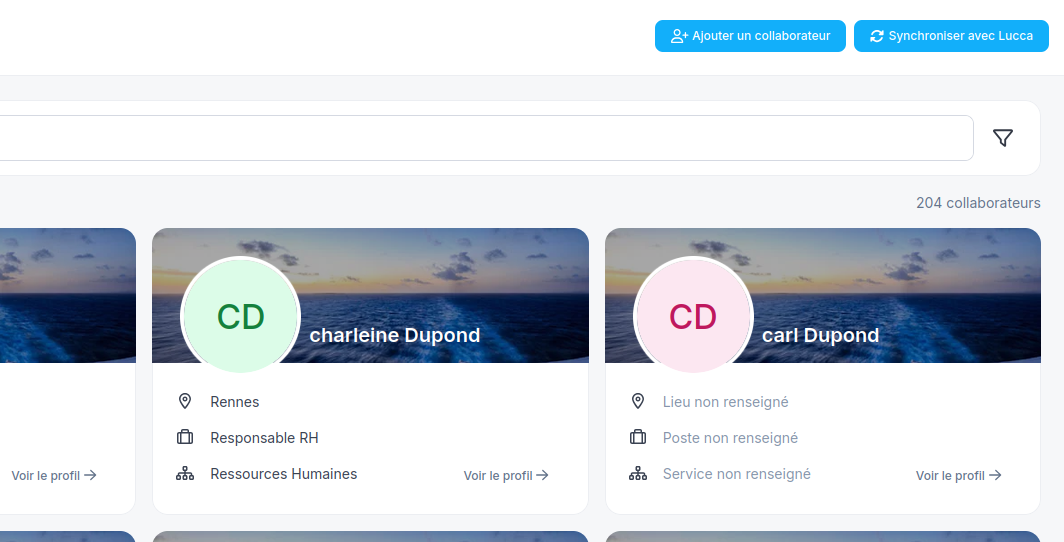
Or, more directly, the **Synchronize with Lucca** button that appears at the top of the**Directory** (`/directory`), next to**Add an employee**.
This button is visible only to organization administrators once connector setup is complete.
In both cases, synchronization applies profiles, communities, and departures, and the report is available a few minutes later.
### View synchronization reports
The section **Synchronization reports** appears as soon as the first run is complete. It shows the date of the last synchronization and provides access to the run history. Each report details what was done — or, for a test, what would have been done — and the reason for any error.
### Disconnect the connector
The button **Disconnect** removes the credentials and personal data from Lucca, and stops synchronization. Your employees and synchronization history are retained. It remains available on a connector that has not yet been activated: a secret value is already stored there, and it is the only way to retrieve it.
### What the assistant can do
The assistant can guide the user to the page **Integrations** via navigate\_to and explain how the connector works (who manages employee profiles, advanced options, nightly synchronization, reports). It can remind that the test is required only before the first synchronization, and that SCIM provisioning must be removed before activating the connector. For creating the OAuth application on the Lucca side, direct users to Lucca documentation and to