> For the complete documentation index, see [llms.txt](https://help.steeple.com/llms.txt). Markdown versions of documentation pages are available by appending `.md` to page URLs; this page is available as [Markdown](https://help.steeple.com/en/administration/collaborateur-sans-email.md).
# How do I add a collaborator without an email address?
### Overview
Not all of your employees have a professional email address. You can still create a Steeple account for them: instead of an address, you assign them a **username** — a username you choose — and a **4-digit code** that they use to activate their account.
The employee logs in with this username and code, then sets their password. No email address is involved, either when creating the account or when logging in.
This applies both when creating a single employee and when importing from a file.
### Add a single employee
Go to the **Administration**, section **Employees** (`/administration/users`), then click on **Add an employee** in the top right.
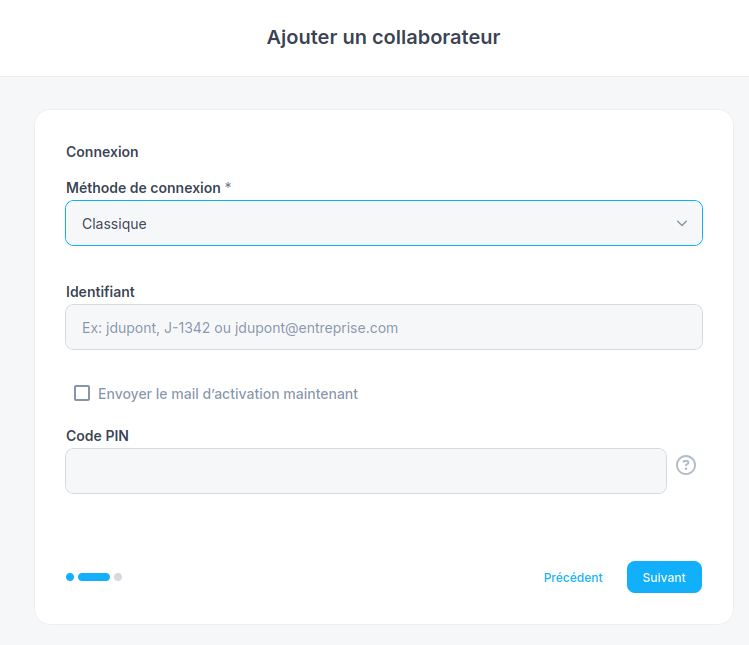
The form has three steps: **Identity** and **Profile**, then **Login**, then **Communities**. Everything related to email-free login is configured in the second step.
#### Login method
If your organization uses a login method other than classic login, such as SSO, the step **Login** starts with a field **Login method**. Choose **Classic** : it's the only method that lets you enter a username in the **Username**.
If this field doesn't appear, there's nothing to do: your organization is already on classic login, and the field **Username** accepts a username directly.
#### Username
The field **Username** accepts either an email address or a username. Enter the username chosen for the employee there, for example `jdupont` or `J-1342`.
A username is 3 to 50 characters long, using letters, numbers, periods, hyphens, and underscores, with at least one letter or number. It must also be available: Steeple rejects a username that is already assigned **across the whole platform**, including in another organization. This is what causes a short or purely numeric employee ID reused as a username to fail — see [How do I add an employee?](/en/administration/ajouter-collaborateur.md).
Choose a naming rule and keep it consistent across your organization — first initial and last name, or employee ID. This is what the employee will need to remember, and what you will remind them of if they forget it.
#### 4-digit code
The field **PIN code** requires four digits. It is **required** for an employee without an email address: it is their only way to activate their account. The form reminds you if you forget it.
This code is temporary. It allows the first login, and stops being valid as soon as the employee has set their password.
#### Activation email
The checkbox **Send the activation email now** remains available as long as an address is entered anywhere on the profile: if you entered a **contact email**, the activation email is sent to that address.
With no address at all, the checkbox is disabled — there's nowhere to send the message. It is then up to you to give the username and code to the employee.
#### Contact email
The field **Contact email**, in the first step of the form, is optional. If the employee agrees to share a personal address, entering it lets them reset their password independently; without it, they will have to go through you. It is never used to log in.
### Add multiple employees by file
The import template includes a column **Username** and a column **TV PIN code**, alongside the column **Email**. The same rules apply, line by line.
* Each row must contain **at least one identifier** : an email address, a login ID, or an employee ID. A row with none of these cannot be linked to anyone. The case of a row that contains only the employee ID is described below, in [Employees known by their employee ID](#collaborateurs-connus-par-leur-matricule).
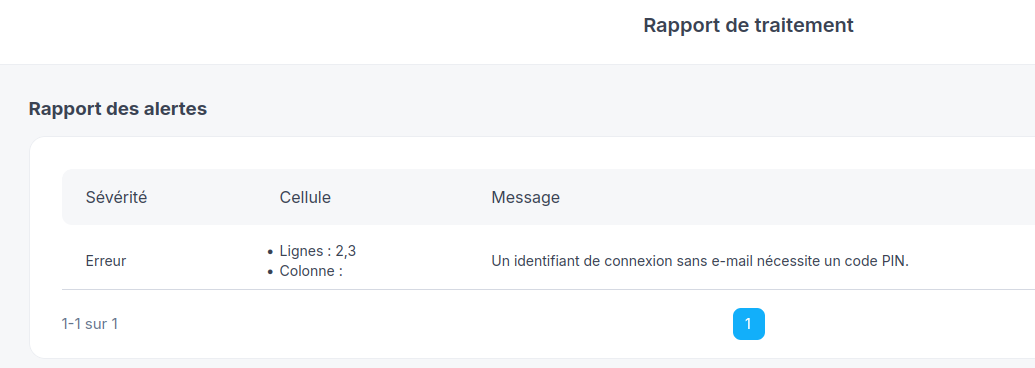
* A row that assigns a **login ID** without an email address must include a 4-digit code, otherwise the employee would be created with no way to activate their account.
* The same username cannot appear twice in the file.
* A file that assigns or changes a login ID must first be **simulated**. Simulation is the only place where you can see how many addresses stop being usernames: an import that switches an entire organization to usernames is read there, not after the fact.
These checks happen when the file is analyzed, before anything is written. The **alerts report** names the problematic rows and the reason; as long as an error appears there, the file is not executed — fix it and upload it again. The most common cases are a malformed username and a username already used elsewhere.
The full import workflow is described in the article [How do I import employees in bulk?](/en/administration/import-collaborateurs.md).
### Employees known by their employee ID
This section covers two cases:
* you import employees by file with their **employee ID**, without email address or username;
* your organization used registration by employee ID, and Steeple switched it to classic login.
In these two cases only, Steeple assigns a username and code itself. An employee you create individually from the form does not get one: you choose their username and code, as described above.
* **Username** : the prefix of your organization, a hyphen, then the employee ID. With the prefix `ABC`, the employee ID `1234` gives the username `ABC-1234`. The prefix is the same for all employees in your organization; you can find it in **Settings**, on the line **Username prefix**.
* **4-digit code** : the day and month of birth. Born on March 14, the employee activates their account with code `1403`.
Steeple doesn't send this information to anyone: it's up to you to pass it on to your employees, as described in [What you share with the employee](#ce-que-vous-transmettez-au-collaborateur). On their first login, the employee enters their username and then their code on the [login page](https://app.steeple.com/login), and sets their password and their own code.
Without a known birthday, the employee has a username but no code: they cannot activate their account yet. Set a code for them from their profile, using the action **Reset password** described in [When an employee can no longer log in](#quand-un-collaborateur-ne-peut-plus-se-connecter), then pass it on to them.
#### When importing
A row that contains a **Employee ID** without **Email** or **Username** creates an employee with that username. Their code comes from the **Birthday day** ; a code entered in the **TV PIN code** column takes precedence over it.
An employee already present in your organization is not affected: they keep their username.
The **alerts report** flags rows whose employee ID cannot become a username: disallowed characters (space, slash, accent...), username too long, already assigned elsewhere on the platform, or employee ID present twice in the file. These rows are flagged as warnings and are not created; the rest of the file is. Fix the employee ID, or give these employees an email address or a username of your choice.
#### If your organization used registration by employee ID
Steeple replaced registration by employee ID and date of birth with classic login.
* Employees who had not yet activated their account now have a username and, when their birthday was known, a code. They were not informed of this: pass this information on to them. To activate their account, they go through the [login page](https://app.steeple.com/login) Steeple, and no longer through the old registration form with employee ID and date of birth.
* Those who had already activated their account continue to log in as before.
* Those you invited by email activate their account with their invitation.
* If you continue to import your employees with your usual file, new ones get their username and code the same way. Those you create individually from the form do not.
### What you share with the employee
Two pieces of information are enough: **their username** and **their 4-digit code**.
On their first login, they enter their username, then their code instead of the password. Steeple then asks them to set **their password** and **their own 4-digit code**, the one they will then use on TV screens. This code replaces the one you gave them, which stops being valid.
Pass the code on through a channel you control — verbally, or on a medium handed over in person. It serves as a password until the first login.
### Find an employee's username
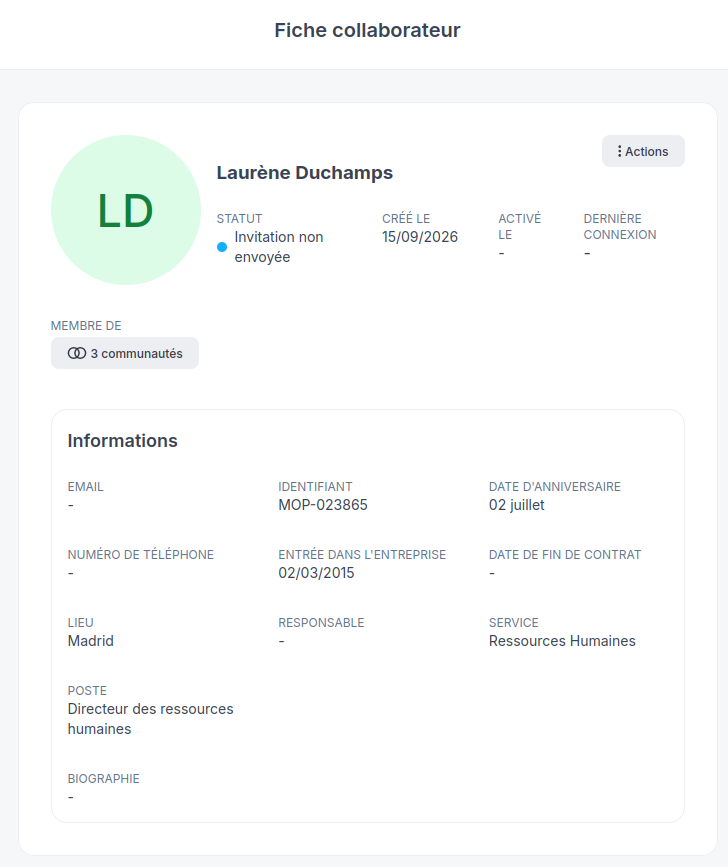
On an employee's profile, the **Information** section shows the line **Username** as soon as they have one, alongside their email and employee ID.
The export of the employee list also includes a column **Username**.
You can change the username at any time from the profile, and replace a username with an email address on the day the employee gets one — or the other way around.
In the latter case, beware: assigning a username to an employee who was logging in with their address removes that address's role as a username. It remains their contact email, but can no longer be used to log in.
### When an employee can no longer log in
If their account has a **contact email**, they can reset their password themselves from the **Forgot password?** link on the login page: the link is sent to that address, even if they log in with a username.
If their account has no address, either as a username or as contact, this link can't do anything for them: there's nowhere to send the message. The page says so and directs them back to you.
From the employee's profile, the **Actions** offers **Reset password**. For an employee who logs in with a username, this action clears their password and logs out all their sessions, then lets you choose:
* **keep their current code** — they reenter it to reactivate their account;
* **set a new code** — you pass it on to them, as when creating the account.
This is also how you handle an employee who has entered their code too many times incorrectly: after several failed attempts, the code is disabled for security. There is then no code left to keep, and the window asks directly for a new one.
The action **Reset password** is also found in the **⋮** menu of the Directory and the employee's full profile. See [How do I manage an employee from the Directory or their profile?](/en/annuaire/administrer-collaborateur-profil.md).
### Give an existing account an email address
An employee who gets an email address does not need a new account.
* From their profile, enter their **Contact email** : they will receive notifications and will be able to reset their password on their own, while continuing to log in with their username.
* Or replace their **Username** with this address: they will now log in with it.
The employee can do the same themselves from **Settings** > **Account**, where the login username and contact email are two separate lines. See [How do I change my email address?](/en/compte-profil/modifier-email.md).
### What the assistant can do
The assistant can explain the difference between the login username, the contact email, and the employee ID, the rule for assigning the username and code from the employee ID, and point you to the Employees page in Administration. It cannot set or reset an employee's 4-digit code: direct you to the employee's profile in Administration.